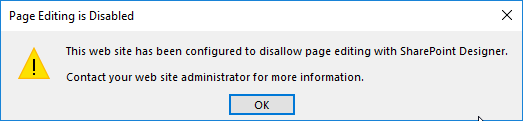
There are three possible causes I’m aware of that you should check if you receive this message:
- Central admin settings not configured properly
- Site collection settings not configured properly
- You’re using a Project Web App (PWA) site template and can only fix this on SharePoint Server
I’ll cover the solutions for each in the same order:
Central admin
Go to central admin –> manage web applications
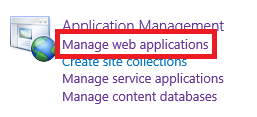
Select the web app on which you received the error and select “SharePoint Designer” from the general settings drop-down. Make sure the first box is checked and click “OK.”
Site collection settings
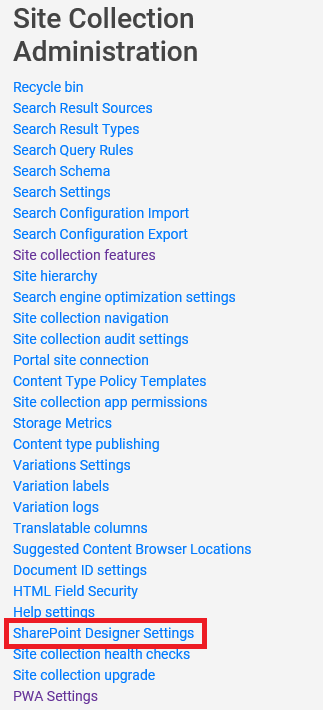
Go to site settings –> SharePoint Designer Settings (under Site Collection Administration)
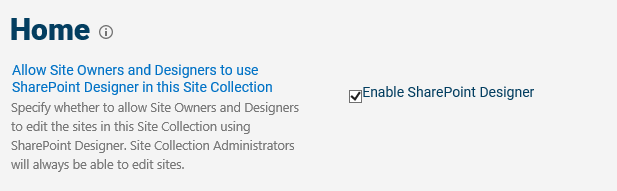
Make sure “Enable SharePoint Designer” is checked and click OK
Project web app template issue
Log in to a SharePoint server and go to C:\Program Files\Common Files\microsoft shared\Web Server Extensions\16\TEMPLATE\SiteTemplates\PWA\XML

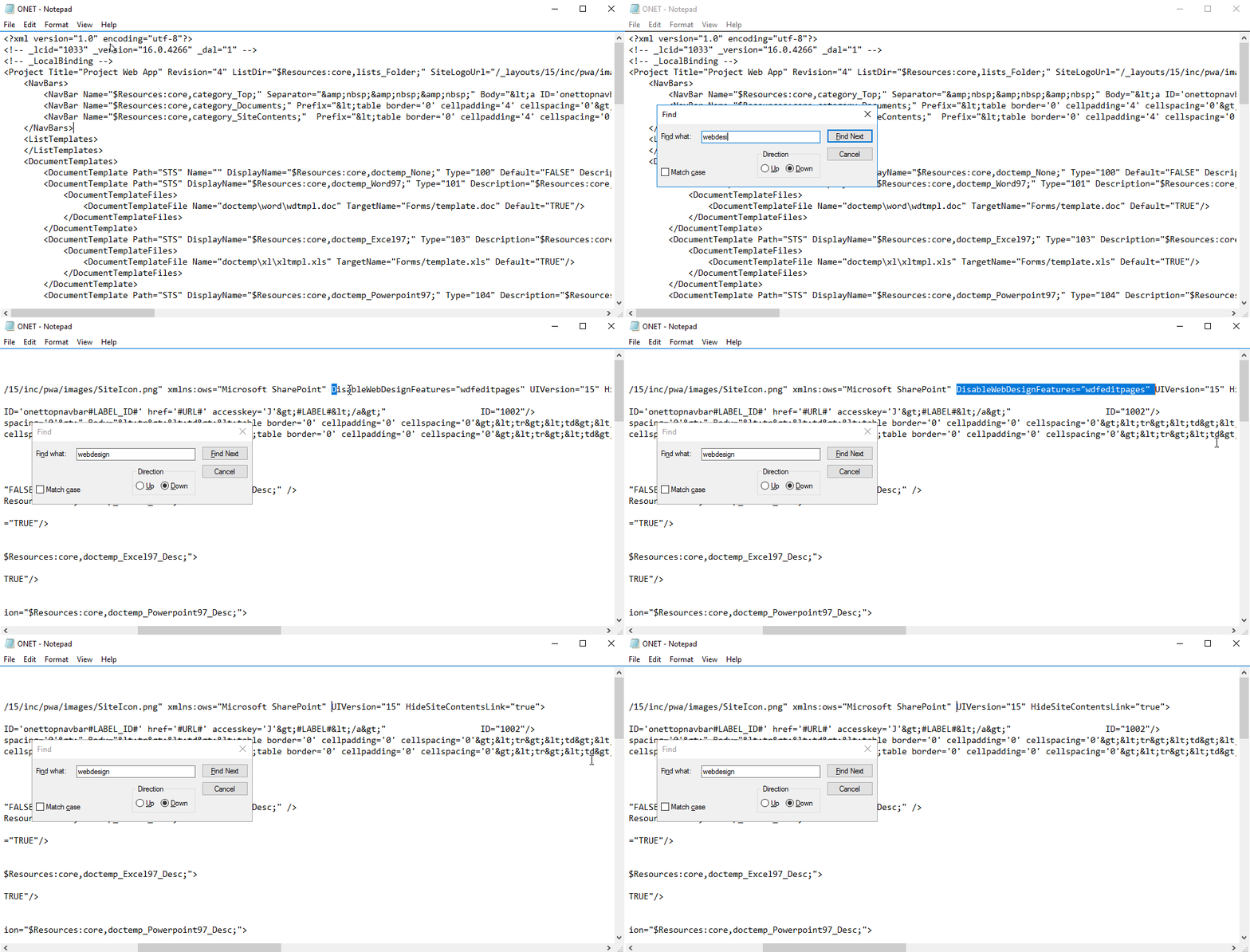
Open the ONET XML file in a text editor like NotePad
Search for “webdesign” (Ctrl+F to open search) and delete the following property:
DisableWebDesignFeatures="wdfeditpages"
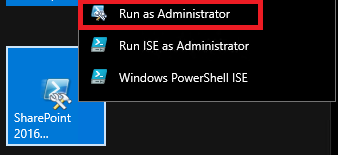
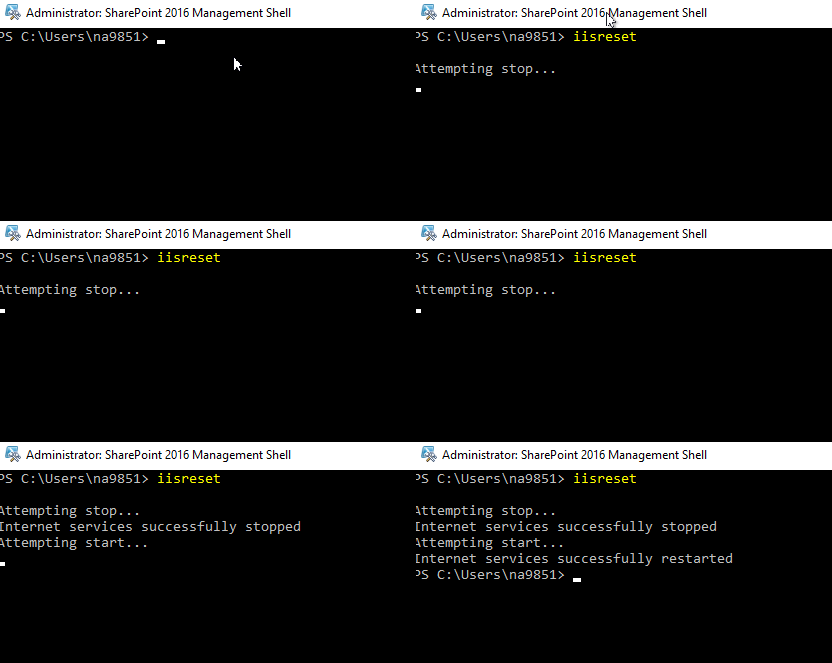
Perform an IIS reset (run SharePoint management shell as administrator)
You may need to repeat these steps on multiple servers if you have multiple web front end servers. You can just copy the ONET file and overwrite the same file on the other servers in the same location. Don’t forget to do an IIS reset afterward on each.
Close and re-open your Project Web App site in SharePoint Designer and you should now be able to edit as you do with other sites.