In both modern and classic SharePoint experiences, you can navigate to any discussion board, list, or library and set a custom alert just for you (or for others if you’re an admin) to get emails on new items, modifications, and more. All of the setup and management guidance below is classic, but modern is almost exactly the same except for how you initially access the “Alert me” options.
Set up a new alert
First, navigate to the list or library. Once there, you’ll see “Files/Items” and “Library/List” at the top. In the example below, we’re setting an alert on a document library so our options are “Files” and “Library.” Click the second option for the library, then “Alert Me.”
Select “Set alert on this library/list”
In the first part of the dialog, choose the Subject line of the email notifications (Alert Title), who should get it (just you if non-admin), and how they should get it. Your administrators may not have text messaging set up, so that may not be an available option.
Finally, choose what you care about (new items, modifications, deletions), the context/criteria for notifications, and how frequently you want emails (immediately, daily, or weekly). I find the daily option is great for discussion boards so users aren’t overwhelmed with back and forth discussion and can instead read a digest and catch up in a single email.
Click OK.
When ribbon menu isn’t there (classic)
Sometimes when you’re on a page with multiple web parts, you won’t see the Files/Library or Items/List menu options. This is because you need to “select” the relevant web part on the page by clicking in “white space” on the web part. The ribbon menu should then appear. And unless settings were changed by your site owner, you can sometimes click the title of the web part to go to just that app where you’ll see the menu as well.
Modify existing alert (end-user)
From the email notifications you receive, you can just click “Modify my alert settings” to see all alerts you have on that particular site, and be able to delete them or edit the settings.
You can also get there the same way we started. Ribbon menu –> List/Library –> Alert Me –> Manage my alerts
Manage all user alerts (admin)
Go to site settings
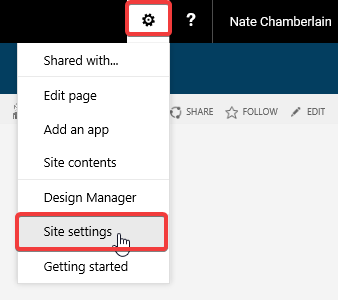
Under “Site administration” select “User alerts”
Choose for whom you’re modifying/deleting the alert(s) and click Update
You’ll now see all alerts that user has set up on that site (or alerts someone set up on their behalf). From here, you can delete any unwanted alerts, or report back to the user or interested party on frequency and topics/lists with alerts.