This article was originally published on December 20, 2019. Product interfaces and features may have changed. Some original images are not yet available.
The following column validation formula worked fine in SharePoint on-prem (2016 specifically, in my case), but returned an error when used in the exact same context in SharePoint Online’s modern UI:
EndDate<=Today()
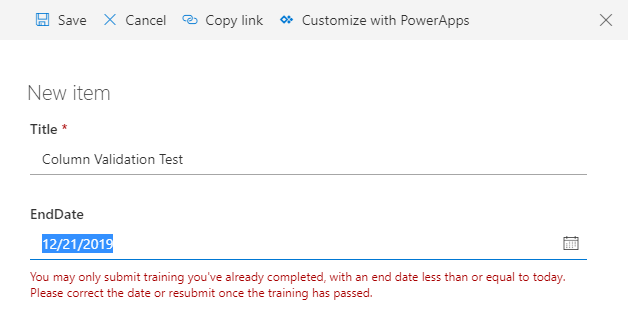
The expected behavior, in SharePoint Server/on-prem OR SharePoint Online/O365, is that if someone enters a date beyond the current date, they’ll get an error message and cannot submit the form until it’s corrected and the validation formula resolves to TRUE.
Troubleshooting in SharePoint Online
I used this formula in SharePoint Server/on-prem, and it worked fine. Then I tried using the modern UI in SharePoint Online by using the column’s menu > Column settings > Edit.
Original image unavailable.
But when you try to save the exact same formula (specifically from the modern experience side panel) you get the error “A formula has a syntax error.”
Original image unavailable.
Then I decided to try the classic view of settings to compare on-prem and online as closely as possible. I went to Settings > List settings and selected my column.
Original image unavailable.
Original image unavailable.
And, as you already know, it WORKED when entered on this classic column settings page (in SharePoint Online still) instead of the modern column settings side panel accessed directly from the list view.
Original image unavailable.
When I go back through the modern UI now that my formula saved successfully, I see what caused the problem. The modern UI requires that you begin the formula with an equals sign (=). When I created the formula through the classic column settings method, it automatically added the equals sign for me in the background.
Original image unavailable.
Solution
So if you’re creating column validation formulas in the modern experience (or even in classic), just remember to add an equals sign (=) to the start of your formula.