You open a project email, read the replies, and still have three questions: What did we decide? What am I responsible for? What should I say back?
Those are useful places to start with Copilot in Outlook. A specific question and a small amount of context can help you turn a conversation into something you can act on: a summary, a reply, a clearer message, a task list, or a meeting agenda.
This tutorial walks through five examples using the same fictional onboarding workshop. Each includes a complete prompt you can copy and adapt, plus a concrete way to check the result.
Feature information checked November 25, 2026. Outlook’s interface and available Copilot features can vary by account, license, app, and rollout.
First, which Copilot experience are we using?
Outlook has several Copilot entry points. Copilot Chat opens a conversation beside your work. Other commands appear in the context of a particular message or event, including Summarize, Draft with Copilot, Coaching by Copilot, and Schedule with Copilot.
The five examples below use Copilot Chat in Outlook, with fictional source material pasted into the prompt. That lets you see the source material you are asking Copilot to use. The screenshots show chat alongside an unsent demonstration draft.
For work and school accounts, eligible Microsoft 365 subscriptions can provide Outlook Copilot Chat access without the paid Copilot add-on. Available context and capabilities differ by license and organization settings. See Microsoft’s Copilot Chat in Outlook guidance and current requirements if your account looks different.
Set up a simple practice session
- Open Outlook on the web or new Outlook for Windows with your work or school account.
- Select New mail to create a demonstration draft. Leave the recipient blank.
- For more room, use the draft’s pop-out button to open it in a separate window.
- Open Copilot to display the chat pane beside the draft.
- Paste one of the complete prompts below into chat and submit it with the arrow inside the Copilot pane. Leave the demonstration email unsent.
The screenshots were captured in Outlook on the web. The copyable prompts are self-contained adaptations of the prompts shown: they repeat the source material so you can try them in any order. Start a fresh chat when switching examples; earlier messages can remain part of a continuing conversation’s context.

Our example is a Riverside onboarding workshop. It is scheduled for December 3 at 10 a.m. Central, lasts 30 minutes, and will take place in Teams. The team needs slide feedback, a tested help-desk link, and someone to present a live demo.
The interesting detail is that some responsibilities are settled and others are still open. That gives us something useful to check in Copilot’s answers.
1. Separate decisions, open questions, and next actions
Ask for categories that match the decisions you need to make: confirmed decisions, open questions, and next actions. Specify how missing information should appear so an incomplete assignment stays visible.
Copy this prompt
Summarize the workshop update below using three headings:
1. Confirmed decisions
2. Open questions
3. Next actions

Preserve the dates, times, and time zone. Include an action owner only when the update explicitly assigns one. If an owner or deadline is missing, write “not stated.” Do not turn a request into an assignment or a proposal into a confirmed decision.

Workshop update:
Our Riverside onboarding workshop is confirmed for December 3 at 10 a.m. Central. It will be a 30-minute Teams session covering signing in, finding team files, and requesting help. Maya requested slide feedback by November 30 at 3 p.m. Central. Jordan will test the help-desk link by December 1 at noon Central. The presenter for the live demo has not been assigned.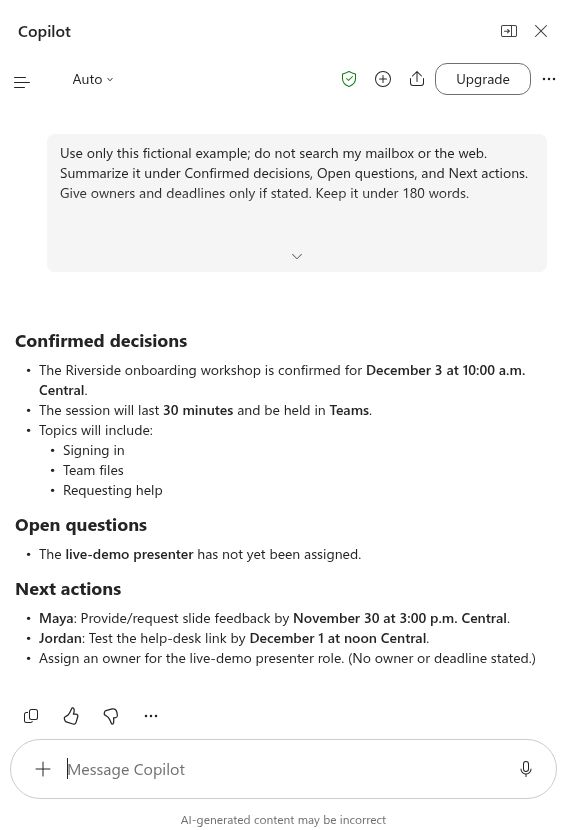
Check the result
The workshop date, time, length, platform, and topics are confirmed. Jordan owns the link test. The demo presenter is unassigned.
In the first demonstration, a prompt asking for stated owners and deadlines still produced this action: “Maya: Provide/request slide feedback.” But Maya requested feedback; the update never assigned her the review. The prompt above makes that distinction explicit, and the result still needs checking. Example 4 shows how a follow-up corrected it.
2. Draft a reply using commitments you actually intend to make
Tell Copilot what you intend to commit to. Here, you can lead the demo and will review the slides. You cannot yet confirm that the help-desk link works.
Copy this prompt
Draft a friendly, direct email reply to Maya using the update and my notes below. Keep it under 100 words. Preserve deadlines and the time zone. Do not say the help-desk link works, invent an attachment, or add promises. Return the subject and email text in chat only; do not send it or update the draft.

Workshop update:
Our Riverside onboarding workshop is confirmed for December 3 at 10 a.m. Central. It will be a 30-minute Teams session covering signing in, finding team files, and requesting help. Maya requested slide feedback by November 30 at 3 p.m. Central. Jordan will test the help-desk link by December 1 at noon Central. The presenter for the live demo has not been assigned.

My notes:
I can lead the live demo, and I will review the slides by November 30 at 3 p.m. Central. Mention that Jordan is still testing the help-desk link.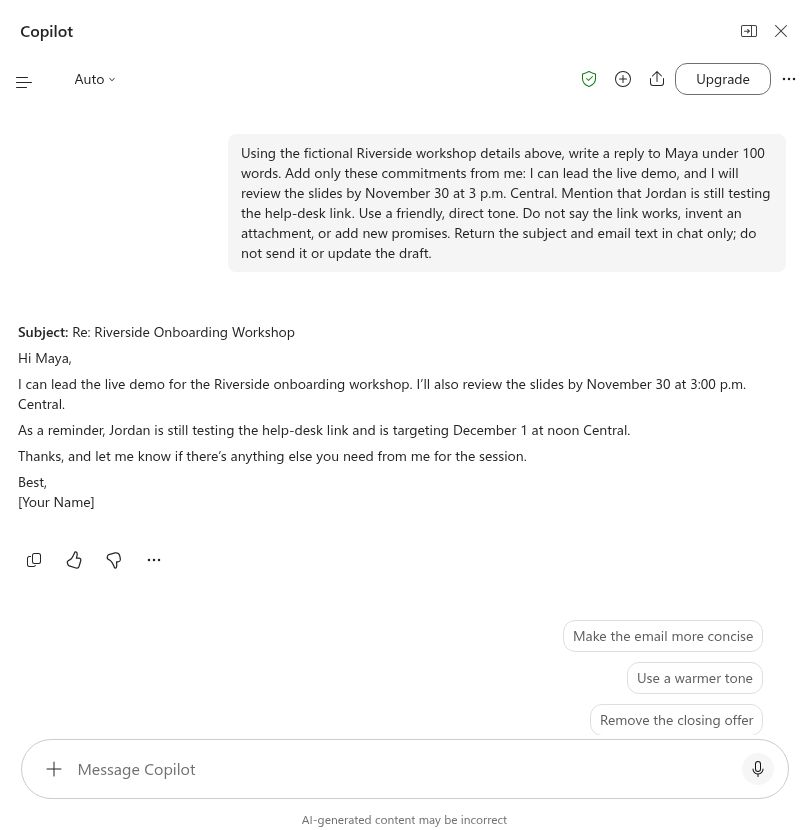
Check the result
The tested reply included the demo and slide-review commitments and correctly left Jordan’s link test in progress. It also added an open-ended offer to help further and a [Your Name] signature. Remove the extra offer if you do not intend it, and replace the name placeholder.
Also check how it presents your offer. “I can lead the demo” accurately expresses your availability. If the team still needs to approve the presenter, wording such as “I’ve been assigned to lead the demo” would go further than your notes support.
Once the wording fits, copy it into your email draft and make any final edits. Writing in chat is a drafting step; review the message and its recipients before sending.
3. Improve the tone while keeping the meaning
Sometimes the facts are fine, but the wording sounds rushed. Ask Copilot to explain what it would change, then provide a revision with specific boundaries.
This is a chat-based review and rewrite. Outlook also has a separate Coaching by Copilot command, covered later.
Copy this prompt
Review this fictional draft for tone and clarity. First give two brief suggestions, then rewrite it in no more than 70 words. Keep the deadline exactly the same and keep the request direct. Do not invent a history of reminders or add promises. Return text in chat only.

Draft:
I still do not have your slide feedback. I need it by November 30 at 3 p.m. Central. Send me your comments or tell me what is blocking you.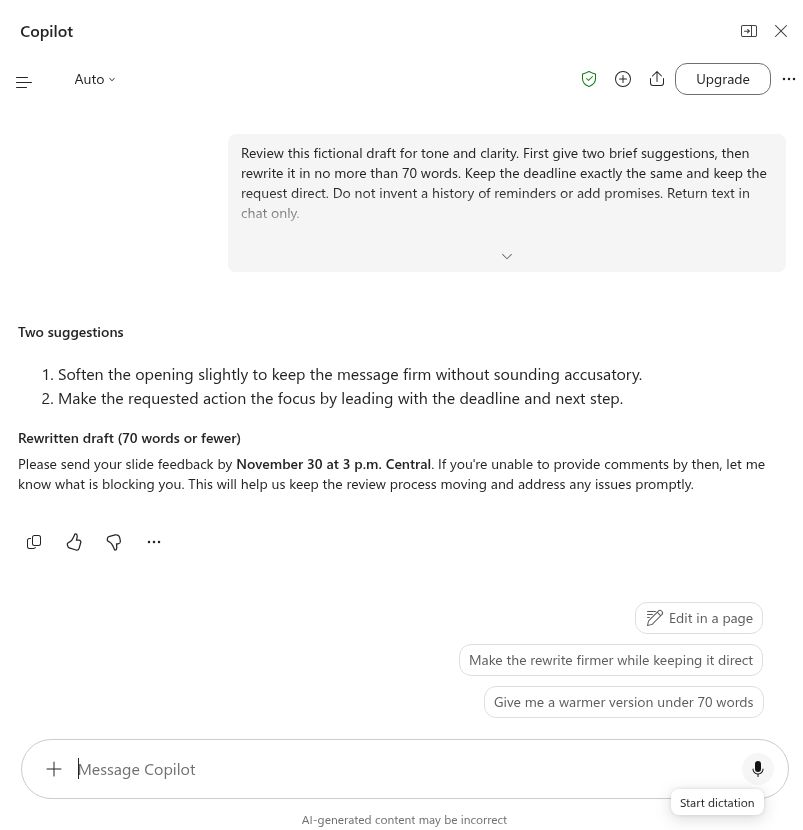
Check the result
In this demonstration, Copilot suggested softening the opening and leading with the deadline. Its rewrite preserved November 30 at 3 p.m. Central, asked for the feedback, and asked the recipient to explain any blocker.
Compare those essentials with your original. A friendlier message still needs the same request and deadline. If a rewrite replaces the deadline with “when you have a chance,” it has changed more than the tone.
Keep the changes that sound like you. You can use one improved sentence without adopting the entire rewrite.
4. Build an action table that exposes missing assignments
An action table can separate logistics, requests, and commitments. Ask for explicit columns and define how unknown information should appear.
If you have tried the reply example, start a new chat for this table. Earlier chat context can carry your offer forward even when it is absent from the next prompt. The screenshot below was captured as a follow-up to the summary, before adding those personal commitments.
Copy this prompt
Extract the work to be done from the update below into a table with these columns:
Action | Owner explicitly stated | Due date and time | Status or clarification needed

Use only this update. Write “not stated” for missing owners or deadlines. Maya requested slide feedback; that does not make Maya its owner. Separate confirmed assignments from suggested follow-ups. Do not label tasks complete unless the update says they are complete. Keep event logistics separate. Do not create tasks or change Outlook.

Workshop update:
Our Riverside onboarding workshop is confirmed for December 3 at 10 a.m. Central. It will be a 30-minute Teams session covering signing in, finding team files, and requesting help. Maya requested slide feedback by November 30 at 3 p.m. Central. Jordan will test the help-desk link by December 1 at noon Central. The presenter for the live demo has not been assigned.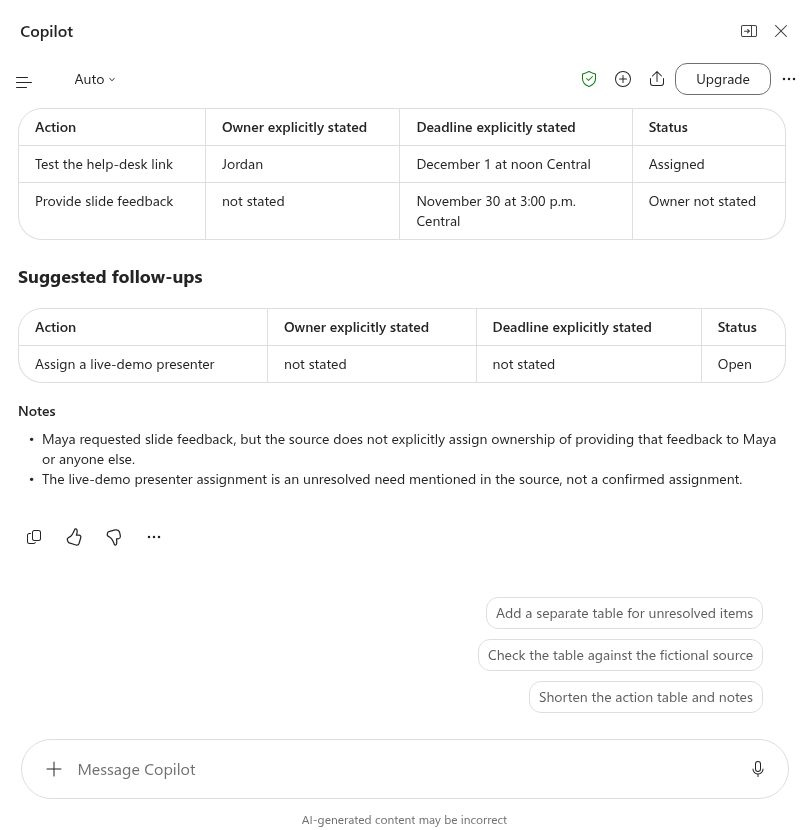
Check the result against the source
Use this reference table to review the answer:
| Item | What the source establishes |
|---|---|
| Slide feedback | Due November 30 at 3 p.m. Central; reviewer not stated |
| Help-desk link test | Jordan; due December 1 at noon Central; completion not confirmed |
| Live-demo presenter | Unassigned; assignment deadline not stated |
| Workshop | December 3 at 10 a.m. Central; 30 minutes; Teams |
The follow-up demonstration correctly identified Jordan and left the slide reviewer as “not stated.” It also separated assigning the demo presenter as an open follow-up. Its heading still said “Confirmed assignments” above an unassigned row, so check the rows as well as the headings.
The workshop date is not an explicitly stated deadline for assigning the presenter. You can use that missing detail to ask a focused follow-up question.
5. Draft an agenda with a realistic time budget
Give Copilot the meeting length, topics, and unresolved details, then ask it to allocate the available time.
Copy this prompt
Create a proposed agenda for the workshop described below. Use a table with elapsed minutes, topic, and intended outcome. Allocate exactly 30 minutes, including a short welcome and time for questions. Keep the three stated training topics. Do not invent presenters or claim that untested links work.

After the agenda, list the preparation items that still need confirmation. Label the agenda “Proposed.” This request is for agenda text only; do not create or send a calendar event.

Workshop update:
Our Riverside onboarding workshop is confirmed for December 3 at 10 a.m. Central. It will be a 30-minute Teams session covering signing in, finding team files, and requesting help. Maya requested slide feedback by November 30 at 3 p.m. Central. Jordan will test the help-desk link by December 1 at noon Central. The presenter for the live demo has not been assigned.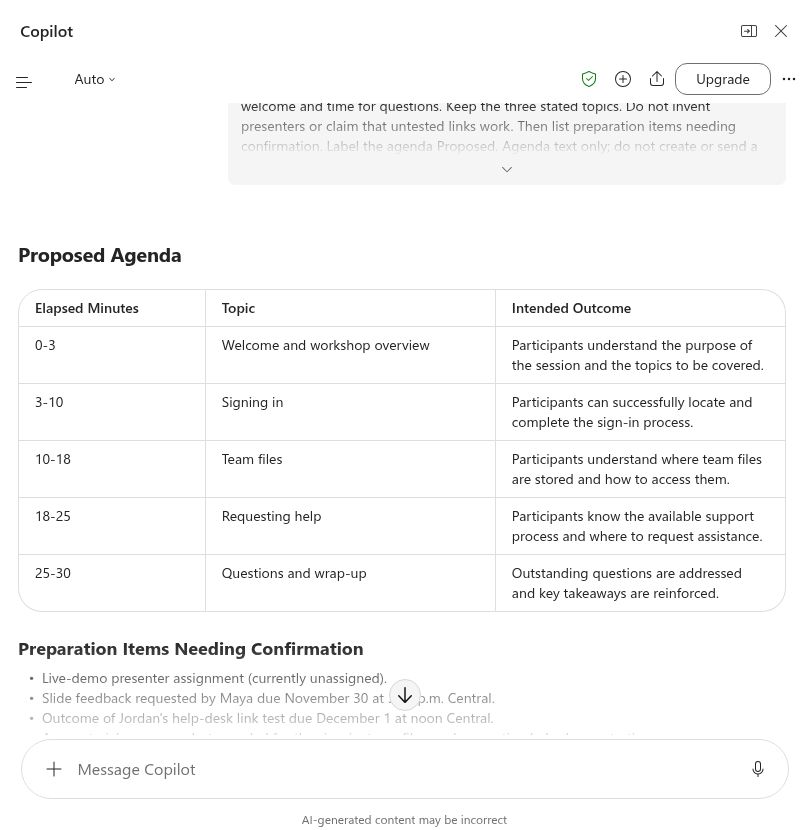
Check the result
Add the durations yourself. In the demonstration, Copilot allocated 3 minutes to welcome, 7 to signing in, 8 to team files, 7 to requesting help, and 5 to questions: 30 minutes in total. All three training topics appeared, and the agenda was labeled as a proposal.
The result is text you can edit and paste into an invitation or planning document. Creating that text does not reserve a room, generate a Teams meeting link, invite attendees, or place the workshop on anyone’s calendar.
Bonus: use Outlook’s contextual Copilot commands
Once you are comfortable with these prompts, try the commands available directly in your Outlook interface:
| Command | Where to look and when to use it |
|---|---|
| Summarize / Summary by Copilot | Open a conversation and look above the messages. Follow the summary’s citations, when shown, to check the underlying email. Microsoft instructions |
| Draft with Copilot | Open a message draft and look for Copilot in the compose toolbar or message area. Some interfaces offer Help me write or Help me reply through chat. Microsoft instructions |
| Coaching by Copilot | Write your draft, then select the command from the compose toolbar’s Copilot menu. Review its suggestions before applying them. Microsoft instructions |
| Schedule with Copilot | In supported new Outlook/web experiences, open the email conversation and look for the scheduling command. It prepares an invitation from the thread; review attendees, timing, agenda, and the attached conversation. Microsoft specifies a work Copilot license for this feature. Microsoft instructions |
These commands are separate from the chat demonstrations above. Availability varies. Microsoft’s new versus classic Outlook comparison lists summarizing, drafting, coaching, and chat in both, while the native email-to-meeting command is available in new Outlook rather than classic.
If a command is missing, check your Outlook version and account with your administrator. For Draft with Copilot in new Outlook/web, also check that the message format is HTML under Settings → Mail → Compose and reply.
A useful habit: ask for the output, then check the commitments
Choose one recurring email task and start there. Supply the relevant information, name the output you want, and explain what must stay unchanged.
Before using the result, check four things: who is responsible, what they committed to, when it is due, and what is still unknown. In the Riverside example, those checks keep a requested review from becoming Maya’s assignment, an offer from becoming a confirmed role, and a planned test from becoming a successful one.
That is a practical way to make Copilot part of your Outlook routine: use it to organize and shape the work, then make the final decisions yourself.