

“Save” isn’t as familiar/intuitive to non-SharePoint users as language such as “Submit” can be. Change “Save” to “Submit” by adding a script editor or content editor web part (CEWP) to the newform.aspx page for your list.
- Go to your list’s newform.aspx page by changing “Allitems” or your default view name with “newform” (www.mysite.com/subsite/lists/ListName/newform.aspx)

Note: If clicking “new item” takes you to a new page and not a dialog, you can just do that instead since the URL will be correct. - Edit page

- Add web part

- Add script editor (Media and content –> script editor –> add)
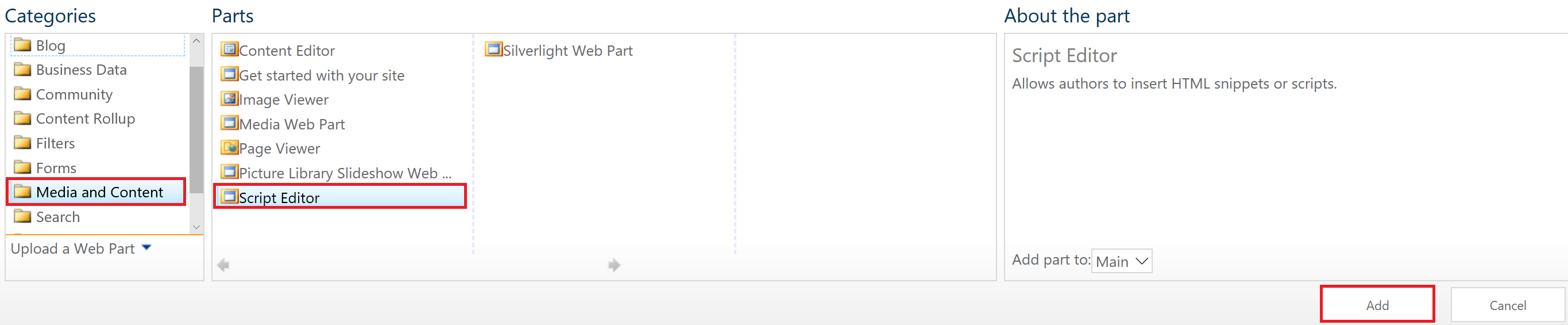
- Edit snippet

- Paste the following code and insert
[code]
<script type="text/javascript">
_spBodyOnLoadFunctionNames.push("ChangeSPSavetoSubmit()");function ChangeSPSavetoSubmit()
{
var inputs = document.getElementsByTagName("input");for(i = 0; i<inputs.length; i++)
{
if(inputs[i].type == "button" && inputs[i].value == "Save")
{
inputs[i].value = "Submit";
}
}
}
</script>
[/code]

- Stop editing page and check the result

Voila!


Leave a Reply