How to give SharePoint link lists a professional look out-of-the-box using the icon library

1–2 minutes

In the modern SharePoint experience, you can clean up ordinary link lists with very little effort, thanks to SharePoint’s icon library.

chrome_2018-10-23_15-30-53

Whether you need a Teams icon (teams), dog (fangbody), tooth (teeth) or football (football), you can search for icons and use those for adding visual cues and iconography to your sites. Here’s how you can implement this on your page(s):

Add the Quick Links web part

  1. Edit (modern) Page
    chrome_2018-10-23_15-15-13.png
  2. Add a “Quick Links” web part
    2018-10-23_15-16-11.gif
  3. Add a link
    2018-10-23_15-17-48.gif

Auto-select icon based on link type

One great feature about this web part is that if you add certain link types (lists, libraries, external websites), it auto-selects an icon by default:

chrome_2018-10-23_15-18-22.png

Choose your own icon from the library

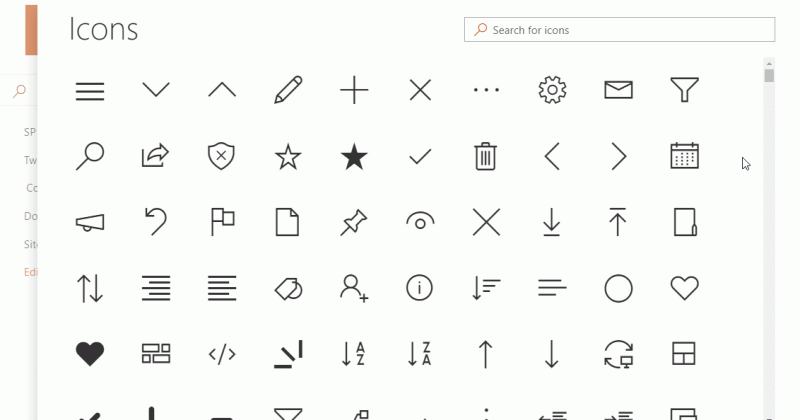
Instead of “auto-select” as seen selected by default above, choose “Icon” then “Change” to select an icon from hundreds in the icon library:
2018-10-23_16-06-57.gif

Here are all of the icons available as of the publishing of this post (Oct 23, 2018):

2018-10-23_15-42-432018-10-23_15-45-34


Discover more from Nate Chamberlain

Subscribe to get the latest posts sent to your email.

2 responses to “How to give SharePoint link lists a professional look out-of-the-box using the icon library”

  1. […] and if you’re not using a web part that has the built-in Office UI Fabric icons (such as the Quick Links web part), why not stick to the basics and use Unicode characters? While limited, you still have some great […]

  2. Donna Avatar
    Donna

    nice!

Leave a Reply

This site uses Akismet to reduce spam. Learn how your comment data is processed.

Discover more from Nate Chamberlain

Subscribe now to keep reading and get access to the full archive.

Continue reading