
After having my identity stolen a couple weeks ago by someone who went on a Twitch spree, I decided to get more serious about my password security.
Having a Google Pixel XL, it was easy to say “yes” every time I was prompted to save a password. And being a Chrome user, I only kept adding to the Google vault. In no time, I had saved 200 passwords.
I’m not saying anything here about Google’s security (I can only assume it’s sufficient), but I am saying you should consider the number of times you perform the “save my password” action. Multiply it a few times (Google, Edge, IE, Chrome, Norton, etc.), acknowledge that those vaults are then shared across devices, and those devices are used on several wireless networks where we don’t necessarily control security.
Also – if you repeatedly use the same password, your risk goes up exponentially. Suddenly a breach of one password is access to any number of services.
Assess your regular risk
Multiply your devices by the number of password storage solutions and then again by the number of internet access points you access and you’ll see the level of risk which with you regularly work. Imagine adding the number of passwords you’ve saved into this equation.

So safe or not, having multiple tools doing the same thing on multiple wireless networks makes no sense and increases risk simply by multiplying the amount of credentials you have stored across the virtual globe and being accessed while at, say, Starbucks.
So my cleanup began. I decided to sign up for a trial of LastPass which I had heard a lot about, and that trial turned into a subscription. I love it and won’t be turning back. Then I set to work removing password storage from all other services. Follow these directions to have Google forget your passwords so you can also consolidate your credential storage to a single source and be more secure.

To improve your security and start trimming down your exposure opportunities specific to Google, you can:
- Delete individual passwords one-by-one (gives you a chance to see them and save elsewhere if needed)
- Delete all synced data stored by Google including passwords
- Delete data from individual Chrome browsers
Delete individual passwords synced across all devices
(not specific to one device’s browser)
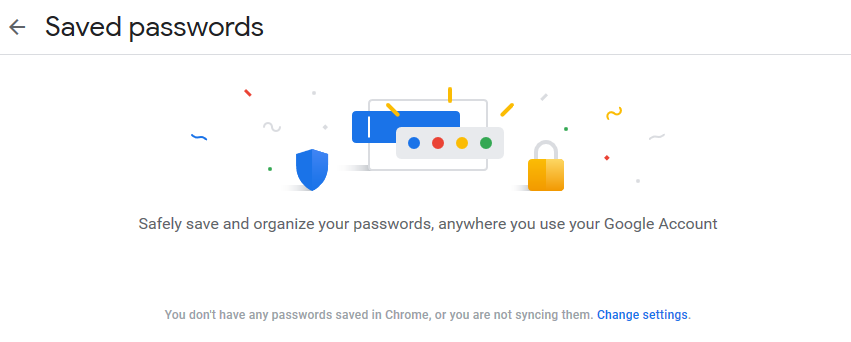
- Login to passwords.google.com and click “See options”

- Toggle off the “offer to save passwords” and “auto sign-in” options

- Select one, optionally show and save the password elsewhere, then Delete and OK

Delete ALL synced data from Google servers
(doesn’t delete from individual devices)
This includes:
- Apps
- Extensions
- Settings
- Autofill
- History
- Themes
- Bookmarks
- Passwords
- Open Tabs
Please note this only stops the sync, but doesn’t delete from individual devices. After this you’ll need to make sure you also
- Log in to chrome.google.com/sync
- Scroll to the bottom and click “Reset sync”

- Click OK

Delete browsing and saved data from individual Chrome browsers
This isn’t unlike clearing any browser’s history. It’s a good practice to clear browser history regularly on all browsers.
- In Chrome, go to chrome://settings/clearBrowserData
-OR-
Click the ellipses menu in the upper right of Chrome –> More tools –> Clear browsing data
- Click the “Advanced tab”
- Change time range to “All time”
- Check all boxes

- Clear data


Leave a Reply