
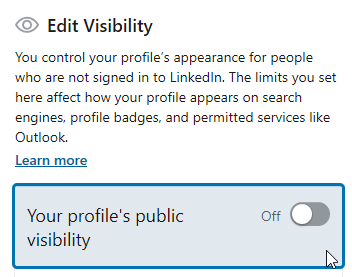
By default your LinkedIn profile may appear in public search results and individuals who aren’t logged in to LinkedIn can see some of your information (depending on the privacy settings of each component as you added it to your profile). This public/anonymous access is also what allows Outlook to find your profile as a potential match for you if you haven’t connected your profile yet.
Note: Connecting to LinkedIn at work requires that your administrators enable LinkedIn connections.
In this post we’ll go through the steps to disable your public profile so that only logged in users may connect with you and/or view your profile in whole or part depending on your settings. You can also watch a video demonstration at the bottom of this first section below.
How to disable your LinkedIn public profile from anonymous access
1. Go to LinkedIn and log in.
2. Select your profile menu then Settings & Privacy.
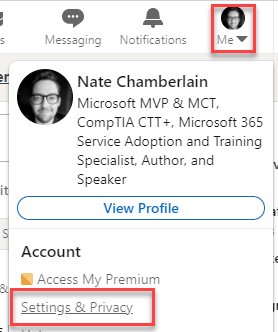
3. Click Visibility (on the left) and then next to Edit your public profile, click Change.

4. Toggle the Edit Visibility option to the off position. It saves automatically.

You could, alternatively, just restrict which content appears publicly. Instead of step 4, leave it toggled in the on position and choose which items below it should be available.

As you make changes, the preview on the left will update to show you what anonymous users will see when on your profile but not logged in.

How to disable access to your profile for LinkedIn partners and permitted services like Outlook
1. Go to LinkedIn and log in.
2. Select your profile menu then Settings & Privacy.

3. Next to Profile visibility off LinkedIn, click Change then change the toggle to the off position.

Leave a Reply