How to create one-click, direct download links in modern SharePoint Online libraries

2–3 minutes

I previously blogged how to create one-click direct download links, but that post was exclusive to the classic experience in SharePoint (or any opportunity in which we could use classic html/css).

Normally, to download a document in modern SharePoint Online libraries, we would have to use a file’s menu (right-click or ellipsis) then choose Download.

Click to enlarge

I was recently challenged to help figure out how to create a single click experience to immediately download a document in modern SharePoint Online libraries and after much trial and error was able to do so using a little bit of JSON in a calculated column.

Here’s how to create a Download link column in modern SharePoint libraries:

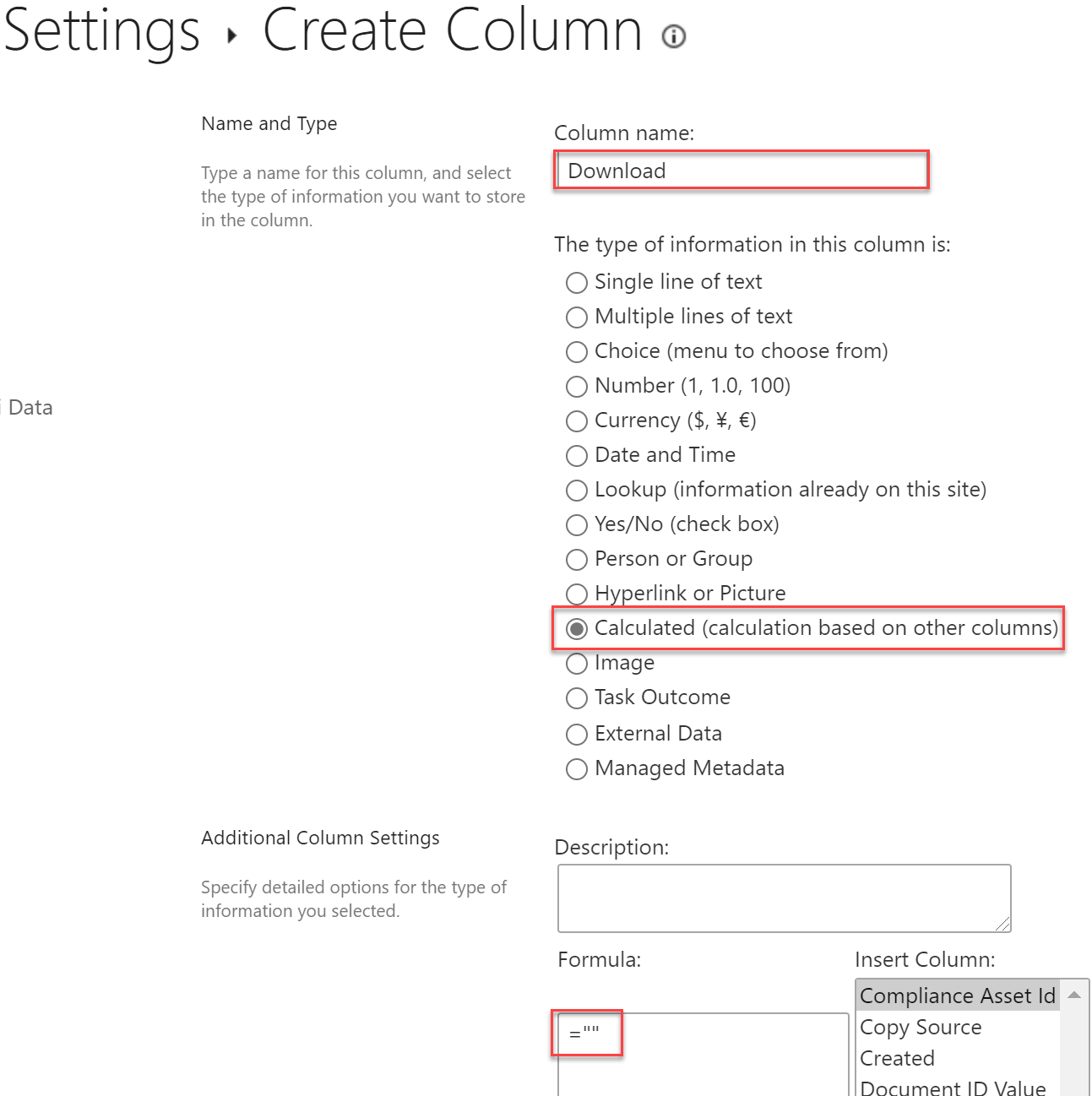
1. Create a calculated column (Library Settings > Create Column) named Download and set its formula to =””
Click to enlarge

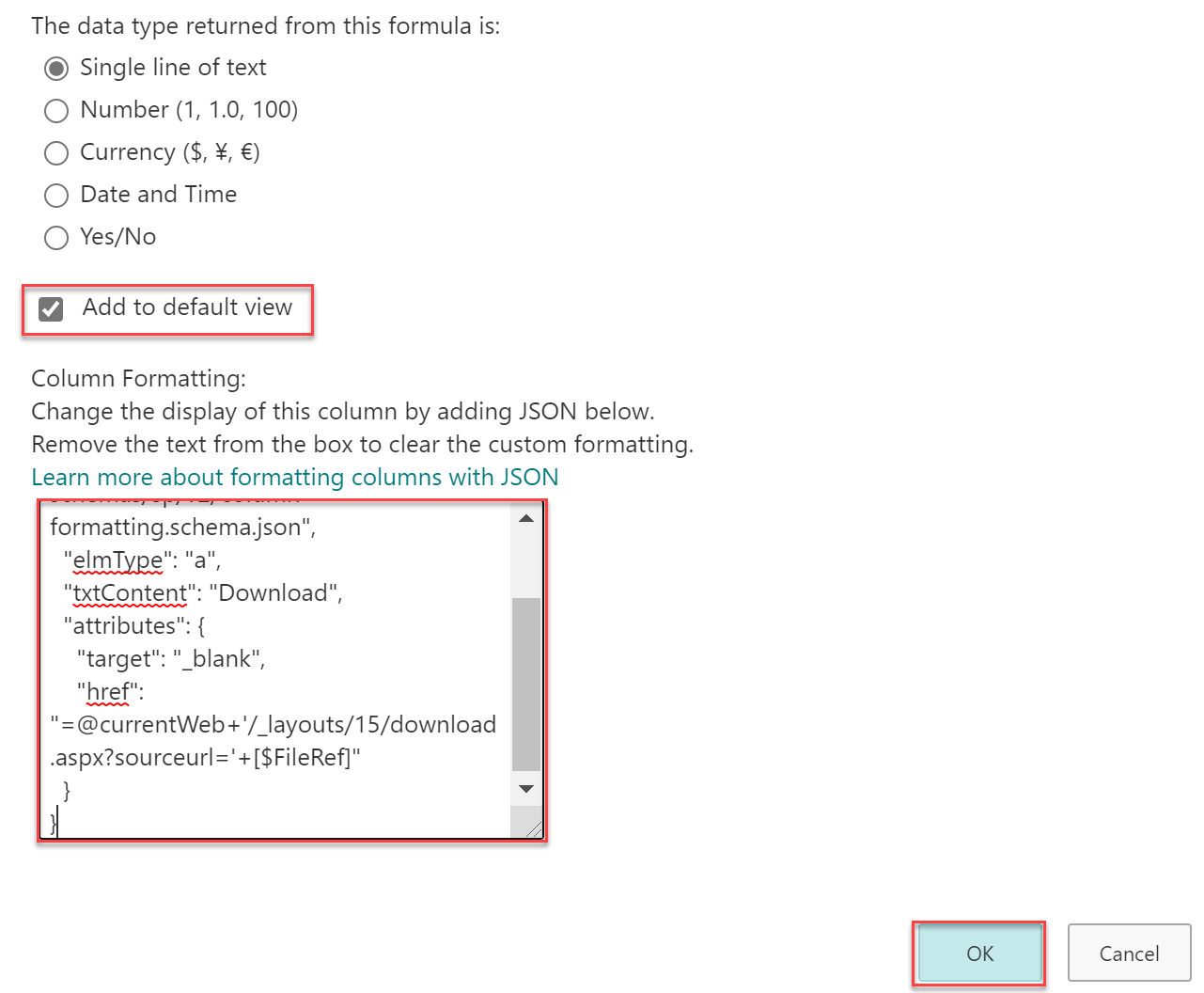
2. Copy and paste the following JSON code into the JSON formatting field of the calculated column settings.

{
  "$schema": "https://developer.microsoft.com/json-schemas/sp/v2/column-formatting.schema.json",
  "elmType": "a",
  "txtContent": "Download",
  "attributes": {
    "target": "_blank",
    "href": "=@currentWeb+'/_layouts/15/download.aspx?sourceurl='+[$FileRef]"
  }
}

3. Set the new column to show in the default view so it’s visible in the library and click OK.
Click to enlarge

4. Return to your library, and test it out!

And if you want anonymous users to be able to use these convenient download links, be sure to share a FOLDER link with the anonymous user(s) so they will see the file in the library alongside the one-click download link.

Optional formatting of the Download link

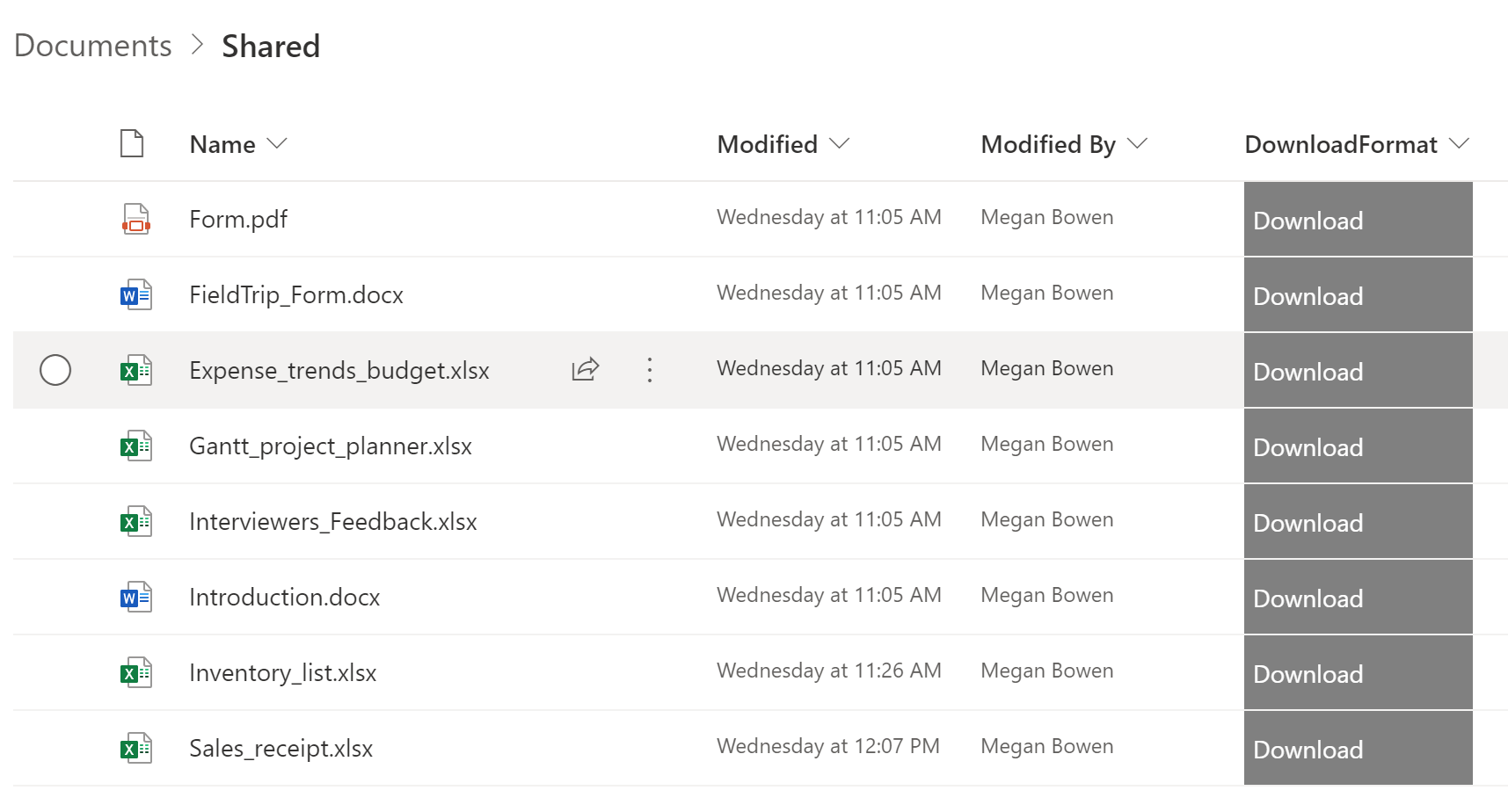
And while I’m not a JSON expert, I did dabble a bit in stylizing the Download link so it would look a little bit better. You can add a little bit of style to the JSON to achieve a more button-like experience (or for the advanced among you, change the element to an actual button or download icon).

Here’s how you can get started stylizing the text link (see result at bottom):

{
  "$schema": "https://developer.microsoft.com/json-schemas/sp/v2/column-formatting.schema.json",
  "elmType": "a",
  "txtContent": "Download",
  "style": {
    "background-color": "gray",
    "text-decoration": "none",
    "color": "white",
    "font-size": "14px",
    "padding-left": "5px"
  },
  "attributes": {
    "target": "_blank",
    "href": "=@currentWeb+'/_layouts/15/download.aspx?sourceurl='+[$FileRef]"
  }
}
Click to enlarge

Optional usage of the file’s name instead of “Download”

One small change to the JSON will reference the file’s name for the link instead of using “Download” for all links. Then you could hide Name and just use your Download column.

{
  "$schema": "https://developer.microsoft.com/json-schemas/sp/v2/column-formatting.schema.json",
  "elmType": "a",
  "txtContent": "[$FileLeafRef]",
  "attributes": {
    "target": "_blank",
    "href": "=@currentWeb+'/_layouts/15/download.aspx?sourceurl='+[$FileRef]"
  }
}
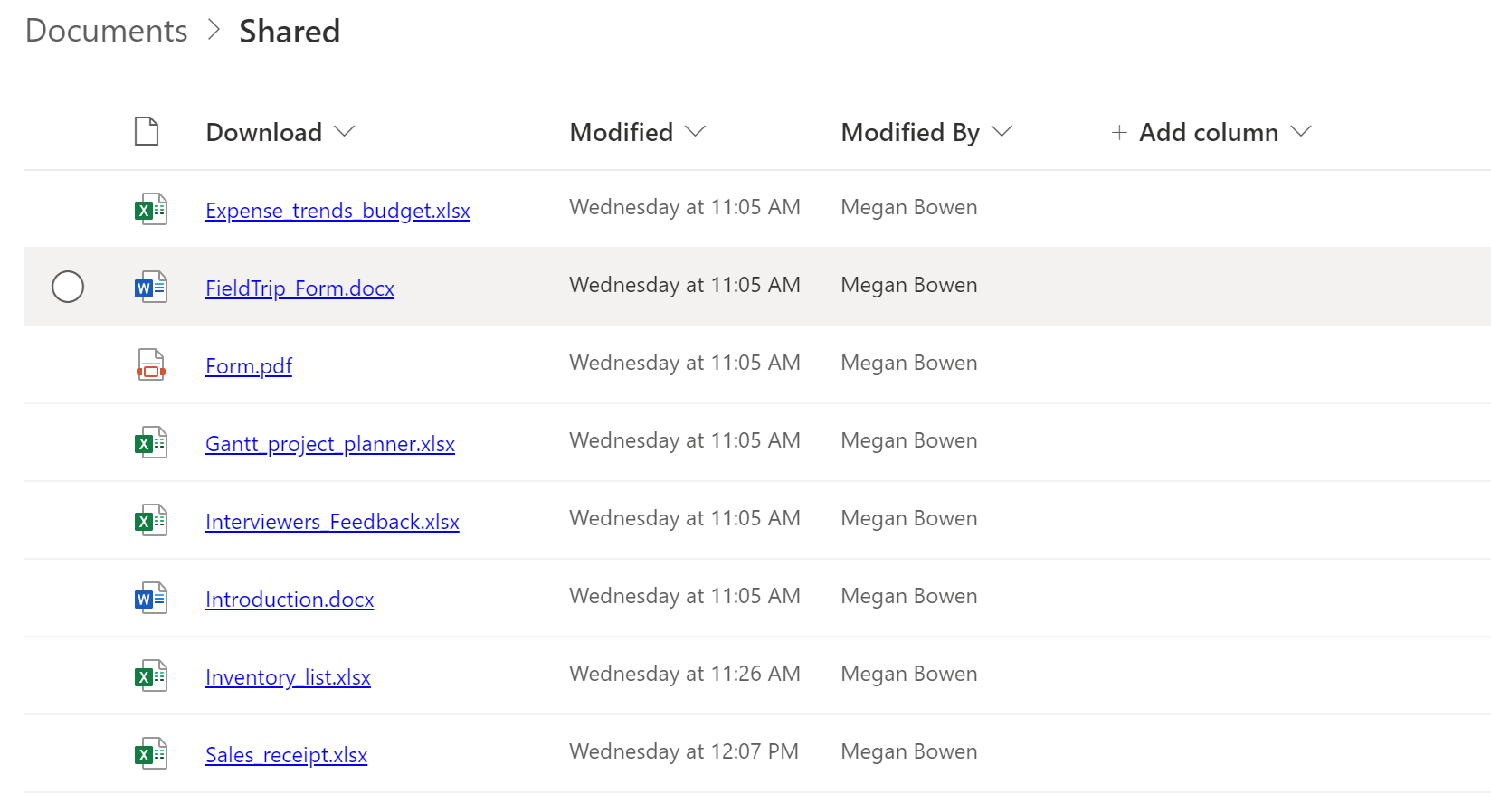
Click to enlarge

Discover more from Nate Chamberlain

Subscribe to get the latest posts sent to your email.

13 responses to “How to create one-click, direct download links in modern SharePoint Online libraries”

  1. Phil Avatar
    Phil

    Any idea on how this might work on a SharePoint list where there are multiple attachments on a single list item?

  2. Kevin McKeown Avatar
    Kevin McKeown

    This doesn’t work when there is an ampersand ‘&’ in the file name. It breaks when the browser loads the URL and this is what causes a File Not Found error for some files.
    The browser doesn’t convert ampersands coming from the [$FileRef] value into %26 like it should.
    I am still looking for a workaround to this issue.

  3. Lee Graham-Carlyle Avatar
    Lee Graham-Carlyle

    Great idea but not working, File NOt Found?

    Troubleshoot issues with Microsoft SharePoint Foundation.
    Correlation ID: 51f34fa0-903e-4000-78f5-e06b91b67726

    Date and Time: 11/07/2022 04:32:28

    1. Hannah Avatar
      Hannah

      I have the same issue. Any insights here? Some of the files work and some say File not Found like this error.

  4. Jason Avatar

    Thanks for the very useful post. is there anyway we could tweak the JSon if there is folder. Because when i am clicking on folder, receiving error, nothing to download. how to use condition that if there is folder nothing to do rather throwing error.

  5. Thomas Avatar
    Thomas

    Love the idea, of the button, but is their a way to restrict folder downloads, so it is only possible to download files?

  6. cheewah Avatar

    OMG, what I’ve been looking for. Is there a json option for the online app (without powerautomate)

  7. RH Avatar
    RH

    This is amazing Nate! I tried the solution and had no issue except when I tried to download an entire folder from the document library. Do you know if there is a work around for downloading an entire folder from a library using the same download column methodology, or in the same way that you have outlined for an individual document in a folder?

  8. Kelly Schneider Avatar
    Kelly Schneider

    This is amazing! I love it!

  9. […] How to create one-click, direct download links in modern SharePoint Online libraries | NateChamberla… […]

  10. Lucinda Avatar

    Thanks, Nate – I can see how useful this might be in certain instances for our university!

  11. Gaurav Mahajan Avatar

    Nice! Love this super useful tip!

  12. […] Update 6/19/21: The post below requires use of html and, in SharePoint specifically, would require the classic experience. You may instead be looking for how to create direct download links with JSON in modern SharePoint libraries. […]

Leave a Reply

This site uses Akismet to reduce spam. Learn how your comment data is processed.

Discover more from Nate Chamberlain

Subscribe now to keep reading and get access to the full archive.

Continue reading