

You don’t need a third-party extension like Adobe to be able to save your Outlook emails to PDFs. Instead you can “print” your emails to PDFs and get the same result. I’ll cover the steps for both the Outlook desktop app and the Outlook web app in this post. Spoiler alert: The New Outlook (desktop app) experience is the same as the web app experience.
This method works for other email providers, including Gmail. However, the steps may differ. For instance, the print option might be located in a different place.
Video demonstration at bottom of post.
How to save an email as PDF using the Outlook desktop app
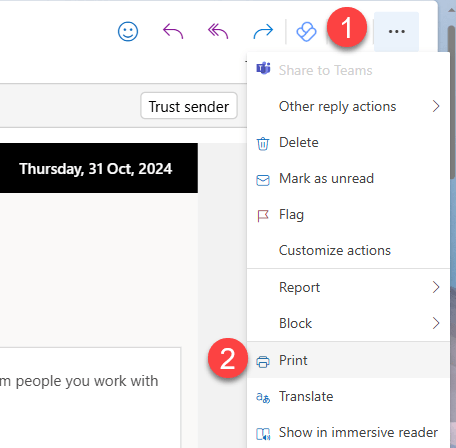
- Open the email you wish to save as PDF, and select the ellipsis (three dots) in the upper right corner of the message.
- Select Print.

- Change the Printer dropdown to Microsoft Print to PDF.
- Select Print.

- In the dialog that appears, select a location for the new PDF then give a name for the new PDF in the File name box.
- Select Save.

How to save an email as PDF using the Outlook web app
Good news! The process is exactly the same as the desktop app steps.
- Open the email you wish to save as PDF, and select the ellipsis (three dots) in the upper right corner of the message.
- Select Print.
- Change the Printer dropdown to Microsoft Print to PDF.
- Select Print.

- In the dialog that appears, select a location for the new PDF then give a name for the new PDF in the File name box.
- Select Save.

Prefer video? Here’s a recorded demonstration of the steps needed to save an email as PDF.
Leave a Reply