
Originally posted 3/6/2023 | Updated 2/22/2025
Using a profile photo in collaborative apps like Microsoft Teams can enhance communication, recognition, engagement, and social connection among coworkers. It can also remove anonymity and add a human touch to the digital workplace.
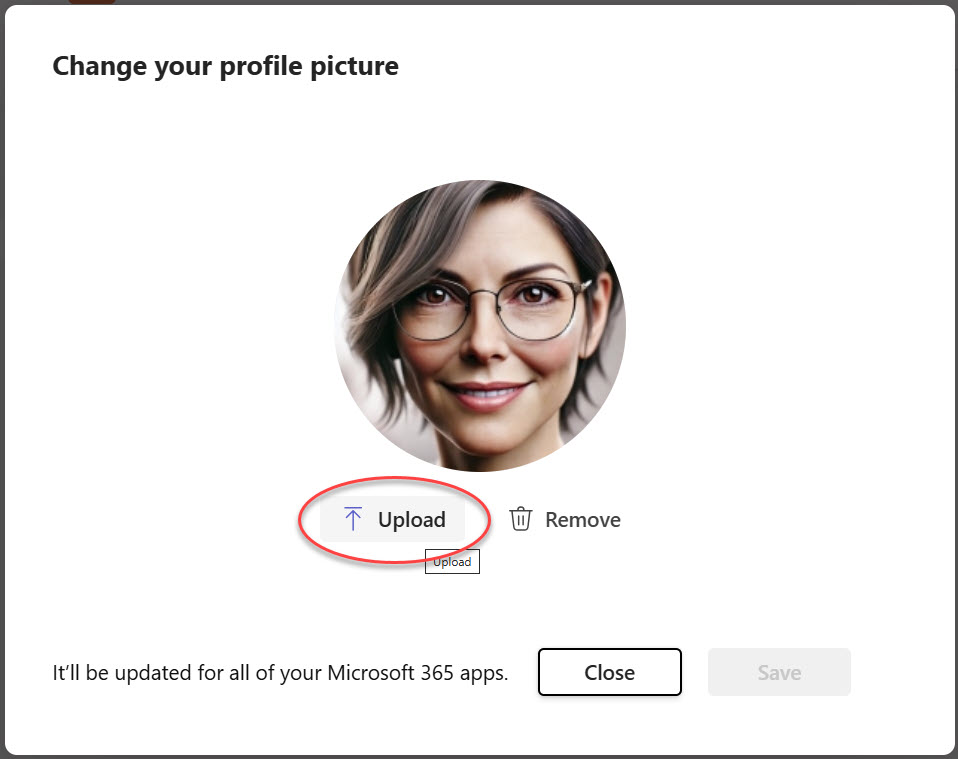
Updating your profile photo in Microsoft Teams updates your profile photo across all of Microsoft 365 – the same picture will appear when you’re using Microsoft365.com, SharePoint, OneDrive, Outlook, etc. in the upper right corner.

Ready to give it a try? Follow these steps:
How to update your profile photo in Microsoft Teams
- Launch Microsoft Teams on your device.
- Tap or click on your current profile photo at the top left or right of the screen, depending on your device
- Tap or click on the camera icon that appears when you hover over or tap on your profile photo.

- Tap or click on Upload picture to access your photos.

- Select a .png, .jpg, or .gif image that’s less than 4 MB in size and tap or click on Save.
Here’s a video demonstration of the steps above:
And that’s it! It may take a small while to see the new photo reflected everywhere throughout Microsoft 365, but there’s nothing more to do. 🎉
How to update your profile photo in the Microsoft Teams mobile app
Here’s a video demonstration of how to update your profile picture using the Microsoft Teams mobile app:
Leave a Reply