
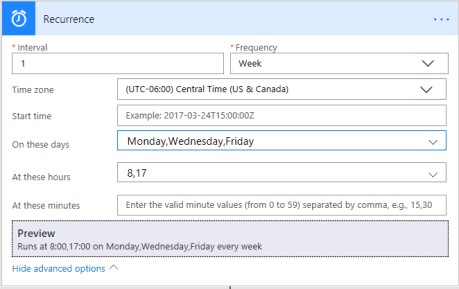
Automatically create and send reports, files and lists on a regular schedule using Microsoft Flow’s recurrence trigger. Whether hourly, daily, weekly or monthly you can deliver the most current and relevant data from SharePoint or OneDrive to interested parties via email without lifting a finger. Combine this with calculated columns in SharePoint and conditions for some awesome possibilities:
| Alerts | Calendar | Relevance | Routine |
| Report costs or expenditures above a certain amount | Current month’s birthdays and/or workiversaries to your secretary | Send expenses per department or individual to that department or individual | Budget and salary or payroll figures weekly |
| Notify when an open ticket is idle for a week or incomplete | Upcoming events per location | Share evaluation status with supervisors for just their employees | Recently closed deals and contracts |
| Survey responses or reviews under 3 stars | Upcoming deadlines per department | Client info and updates to proper salespeople based on location or product | Distribute new hires’ contact/location info to the organization in weekly batches |
Using the Trigger
- Create a flow with the trigger as “Schedule”
- Choose your dropdown option and recurrence variable (every 2 months, every 1 week, etc.)
- Different frequencies have different advanced options
- Time zone
- Start time
- Days of the week
- Hours & minutes

Build the rest of your flow and save!
Example
Here’s how to make a Flow that sends someone birthdays from the organization for the current week. See the bottom for a video. It uses:
- A SharePoint list with names as a text or person column and birthdays as a date column
- An always-live “today” column (whether by script, or this workflow workaround)
- Calculated columns for birthday and today without year (MM-DD)
=TEXT(Birthdate,”MM-DD”) & =TEXT(Today,”MM-DD”) - Calculated column for the date range you want. I will be sending this on Mondays, so I’ll do “Yesterday” through “Saturday” or WF_Yesterday (calculated column [Today]-1) and WF_Today+5 (calculated column [Today]+5)
- Calculated column that evaluates to “Yes” or “No” depending on if the birthday falls in the current week
=IF(WF_Birthday>=WF_Yesterday,IF(WF_Birthday<=[WF_Today+5],”Yes”,”No”),”No”) - A OneDrive (personal) excel file we’ll use to insert the “Yes” birthdays and email to our recipient. We’ll re-use this same file each week. You’ll need to have an existing table set up in the excel sheet with the column headers you wish (name and birthday). Select your headers and the row beneath –> Insert –> Table

Note: If your SharePoint list (or other data list) has more than 100 items/rows, you’ll need to adjust settings for the “get” step to allow a higher limit.


Leave a Reply