This article was originally published on May 1, 2019. Product interfaces and features may have changed. Some original images are not yet available.
Note: Screenshots and steps from a 2016 environment
There may be times when you have AD accounts showing up in search results that you can’t delete, but need to hide from results. The following sections will guide you through removing specific profiles from your people search results.
Steps:
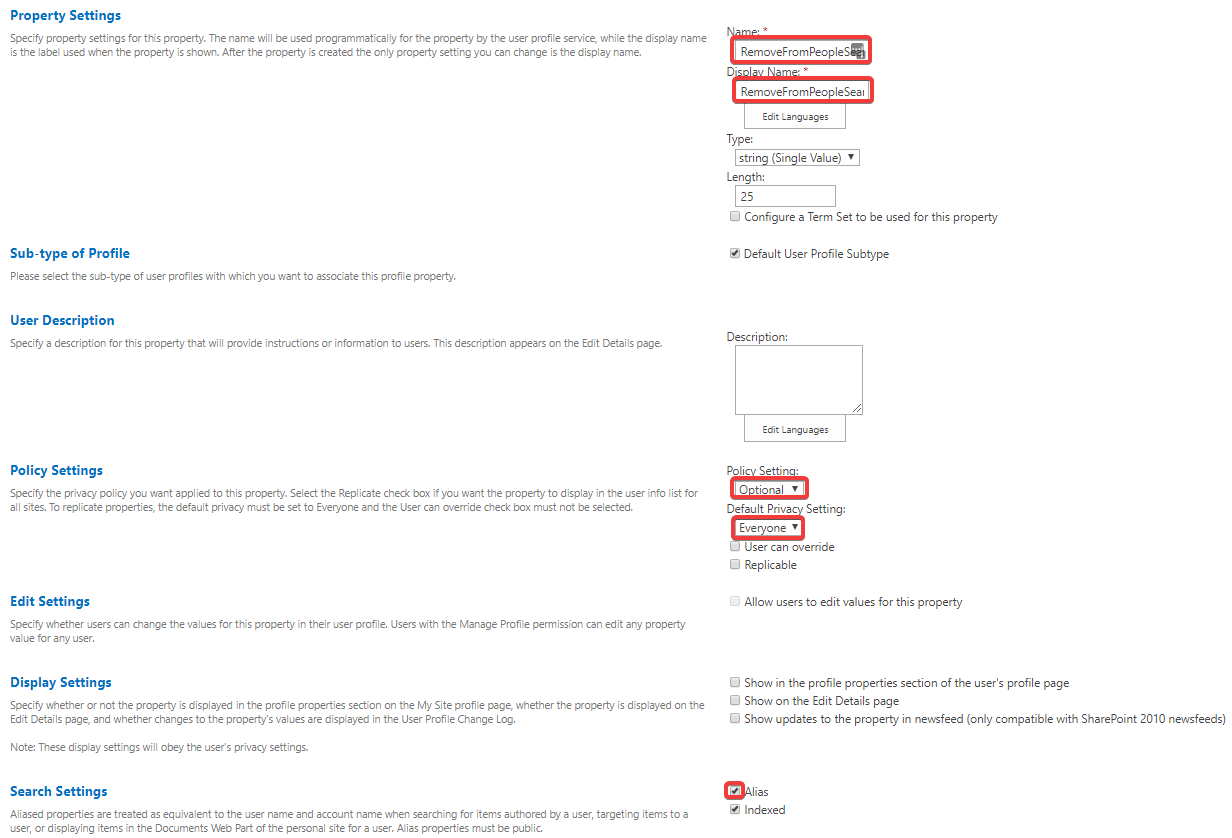
Create a mapped property for user profiles
Use the new property at least once
Start a full crawl of people source
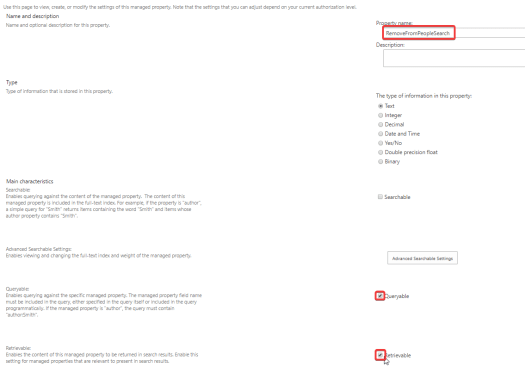
Create a managed property mapped to your new user property
Start a full crawl of site source
Edit the query on the people search results page
(optional) If you have “People Results” as “Promoted Results” or “Ranked Result Blocks”
1. Create a mapped property for user profiles
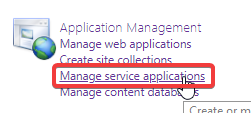
From Central admin, click on “Manage service applications”
For the rest to work, you’ll need to mark at least one user profile to not show up in search. I did this by adding a “1” to the property we just created for a user I wished to remove from results.
Back under “User profile service application” (Central admin –> Manage service applications –> “User profile service application”) click on “Manage user profiles.”
Original image unavailable.
Search for and edit the profile of who you’d like to remove from search results.
Original image unavailable. Original image unavailable.
In the menu that appears on the right, select “Change Query.”
Original image unavailable.
If you’re not in advanced mode, switch to advanced mode. Then expand the “property filter” dropdown and select “show all managed properties.”
Original image unavailable.
Try the dropdown again, and now you’ll see your new property listed. Select it and click “OK
Original image unavailable.
Set properties as follows and click “Add property filter”
Original image unavailable.
Click OK
Original image unavailable.
Click “Apply” on the web part menu
Original image unavailable.
Click “Save” and publish (if checked out)
Original image unavailable.
5. (optional) If you have “People Results” as “Promoted Results” or “Ranked Result Blocks”
If you have people results outside your regular people search (such as a promoted result block in Local SharePoint Results) you’ll just need to be sure to also add the RemoveFromPeopleSearch<>1 string to the end of your query rule’s query.
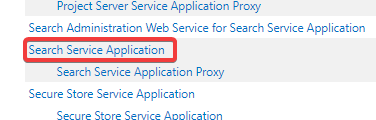
Query rules can be accessed through central admin (manage service applications –> search service application –> query rules) or from Site Settings –> Query rules depending on where you initially setup your query rules/promoted results.
Original image unavailable.via site settings
Original image unavailable.via central admin
Edit the query rule in question, click “edit” next to the result block that’s relevant, then “Launch Query Builder” to be able to add the RemoveFromPeopleSearch<>1 string to your query.