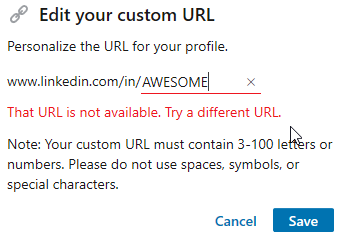
I still see a lot of LinkedIn profile URLs including generic alpha-numerically decorated user names. Let’s clean that up and make it unique and intentional.
For example, if you don’t change your URL it may still be something like:
….linkedin.com/in/nate-chamberlain-ab1234567/
But you can update it to something that looks great on a resume and every other profile, such as:
….linkedin.com/in/nchambe/
Better, right? Let’s do it.
How to customize your LinkedIn profile URL
1. Go to LinkedIn and log in
2. Select your profile menu then Settings & Privacy.

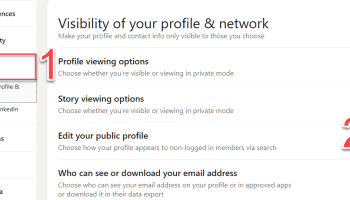
3. Click Visibility on the left, then next to Edit your public profile, click Change.
4. In the upper right-hand corner, select the pencil icon under Edit your custom URL to edit your URL.
5. Enter your preferred URL suffix and click Save.
6. If available, you’re done! If unavailable, try another suffix. FYI – “AWESOME” is not available.